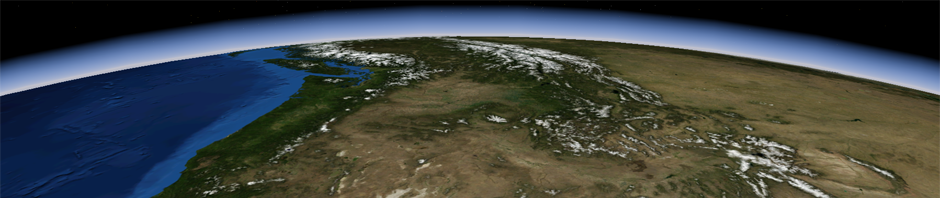
This page describes how to set up MapServer to serve World Wind’s basic data, including Blue Marble, Landsat and Elevations. The instructions are for use with Ubuntu Linux 12.04 using Apache2 as the web server. The data is available on a Network Attached Storage (NAS) device available from the World Wind team. These instructions assume that you have that device.
These instructions were tested using Virtual Box 4.3.12 as the VM container and OS X 10.9.3 as the host. In the Virtual Box Settings for the VM, select “Bridged Adaptor” as the network adapter and create a shared folder named “data” that corresponds to the “data” directory on the NAS. Configure the VM for at least 512 MB of RAM. Be sure to install the Virtual Box Guest Additions, available from the Virtual Box Devices menu for the VM, then reboot Ubuntu afterwards.
Step 1. Ensure that Ubuntu is up-to-date
- Download a copy of Ubuntu 12.04 LTS and install to your target system using default settings.
- In a terminal shell, enter:
- sudo apt-get update
- sudo apt-get upgrade
- Reboot Ubuntu so that the updates are sure to take effect.
Step 2. Install MapServer and Its Dependencies
- In a terminal shell, enter:
- sudo add-apt-repository ppa:nasaww/nasaww
- Reboot to ensure the new PPA takes effect. Then enter:
- sudo apt-get install cgi-mapserver mapserver-bin gdal-bin
- When these packages finish installing, enter the following to run MapServer and ensure that MapServer is installed and runs:
- /usr/lib/cgi-bin/mapserv -v
- Ensure that INPUT=GDAL is included in the output of this command and the version number given is 6.0.3. If instead you get an error or the version number is not 6.0.3, rerun the installation command:
- sudo apt-get install cgi-mapserver mapserver-bin gdal-bin
- /usr/lib/cgi-bin/mapserv -v
- If mapserv runs successfully and the indicated string and version number is in the output, MapServer is installed and working.
Note that MapServer runs only once in response to commands to run it. It performs one task then exits, and does not continue running once the task is complete.
- Now enter the following to install Apache2, unless Apache2 is already installed:
- sudo apt-get install apache2
- Then update Ubuntu again and reboot:
- sudo apt-get update
- sudo apt-get upgrade
- sudo reboot
Step 3. Mount the MapServer Configuration and Data
- Mount the “data” directory of the NAS box as /data using the following commands. This will locate the MapServer configuration files at /data/config and the World Wind data at /data. First create the mount point:
- sudo mkdir /data
- Perform the mount using the following command if you’re using VirtualBox as a testing environment with the NAS box attached via bridged connection. (This is temporary, data should be copied or permanently linked to the server.)
- sudo mount -t vboxsf -o uid=www-data,gid=www-data data /data
- If you’re not using Virtual Box, use the following commands:
- sudo apt-get install nfs-common
- sudo mount ip.address.of.nas:name.of.vbox.share /data
- Mapserver uses a temporary folder to process requests. Create this folder and set it’s ownership with the following commands:
- mkdir /tmp/ms_tmp
- sudo chown www-data:www-data /tmp/ms_tmp
- MapServer should now be ready to serve the data. Test the configuration by using the following URL in a web browser to retrieve the WMS Capabilities document containing a listing of all the available layers. This will cause the XML Capabilities document to appear in the web browser. (If an error appears about a DDS driver, MapServer was not successfully installed. Repeat Step 2 above.)
- http://localhost/cgi-bin/mapserv?map=/data/config/map/nasaww.map&request=getcapabilities&service=wms
- Test again using a URL for specific imagery. This URL will cause an image of the world to appear in the web browser:
- http://localhost/cgi-bin/mapserv?MAP=/data/config/map/nasaww.map&LAYERS=BlueMarble-200401&SERVICE=WMS&VERSION=1.1.1&REQUEST=GetMap&STYLES=&FORMAT=image/jpeg&SRS=EPSG:4326&BBOX=-180,-90,180,90&WIDTH=256&HEIGHT=256
- Now you can test from another network-connected computer to ensure that MapServer can be accessed from the network. Use the same URLs as above but substitute the IP address of the Ubuntu instance for “localhost”. To determine the instance’s IP address, type the following command in a terminal and look for the internet address in the output:
- ifconfig
Step 4. Configure Apache2
This step eliminates the need for the MapServer client to include the location of the MapServer map file in the URL.
- Edit /etc/apache2/sites-available/default as follows to contain an alias for mapserver and identify the map file:
- Add the following before the closing <VirtualHost> tag in this file:
Alias /wms /usr/lib/cgi-bin/mapserv
<location /wms>
setHandler cgi-script
Options ExecCGI
SetEnv MS_MAPFILE /data/config/map/nasaww.map
</location>
- Add the following before the closing <VirtualHost> tag in this file:
- Restart Apache2 in order for the change to take effect:
- sudo apache2ctl restart
- To test, in the test URL of Step 4, replace this:
- localhost/cgi-bin/mapserv?MAP=/opt/config/map/nasaww.map&
With this:
localhost/wms?
- localhost/cgi-bin/mapserv?MAP=/opt/config/map/nasaww.map&
- You should again see the Blue Marble image in the web browser.
Step 5. Add Site-Specific WMS Capabilities Information
The WMS GetCapabilities request returns host information about the server and metadata about its contents. This step modifies the MapServer map file to reflect your installation’s information.
- Edit the following entries in /data/config/map/nasaww.map to reflect your installation:
- ows_title
ows_abstract
ows_onlineresource (Replace localhost with your server’s host name.)
ows_contactperson
ows_contactorganization
ows_contactelectronicmailaddress
- ows_title
Step 6. Further Testing
The following URLs should cause the web browser to display the capabilities document in the first case, imagery for all but the final three URLs, and elevation data (application/bil) for the last three URLs in the list.
- WMS GetCapabilities request
http://localhost/wms?SERVICE=WMS&REQUEST=GetCapabilities - World continents: default - http://localhost/wms?LAYERS=continents&SERVICE=WMS&VERSION=1.1.1&REQUEST=GetMap&STYLES=&FORMAT=image/jpeg&SRS=EPSG:4326&BBOX=-122.6,36.9,-121.6,37.9&WIDTH=500&HEIGHT=500
- BlueMarble January 2004 - http://localhost/wms?LAYERS=BlueMarble-200401&SERVICE=WMS&VERSION=1.1.1&REQUEST=GetMap&STYLES=&FORMAT=image/jpeg&SRS=EPSG:4326&BBOX=-122.6,36.9,-121.6,37.9&WIDTH=500&HEIGHT=500
- BlueMarble June 2004 - http://localhost/wms?LAYERS=BlueMarble-200406&SERVICE=WMS&VERSION=1.1.1&REQUEST=GetMap&STYLES=&FORMAT=image/jpeg&SRS=EPSG:4326&BBOX=-122.6,36.9,-121.6,37.9&WIDTH=500&HEIGHT=500
- Earth at Night - http://localhost/wms?LAYERS=earthatnight2012&SERVICE=WMS&VERSION=1.1.1&REQUEST=GetMap&STYLES=&FORMAT=image/jpeg&SRS=EPSG:4326&BBOX=-122.6,36.9,-121.6,37.9&WIDTH=500&HEIGHT=500
- ESAT - http://localhost/wms?LAYERS=esat&SERVICE=WMS&VERSION=1.1.1&REQUEST=GetMap&STYLES=&FORMAT=image/jpeg&SRS=EPSG:4326&BBOX=-122.6,36.9,-121.6,37.9&WIDTH=500&HEIGHT=500
- USGS Topographic C - http://localhost/wms?LAYERS=topo-c&SERVICE=WMS&VERSION=1.1.1&REQUEST=GetMap&STYLES=&FORMAT=image/jpeg&SRS=EPSG:4326&BBOX=-122.6,36.9,-121.6,37.9&WIDTH=500&HEIGHT=500
- USGS Topographic O - http://localhost/wms?LAYERS=topo-o&SERVICE=WMS&VERSION=1.1.1&REQUEST=GetMap&STYLES=&FORMAT=image/jpeg&SRS=EPSG:4326&BBOX=-122.6,36.9,-121.6,37.9&WIDTH=500&HEIGHT=500
- SRTM30 and bathy - http://localhost/wms?LAYERS=srtm30&SERVICE=WMS&VERSION=1.1.1&REQUEST=GetMap&STYLES=&FORMAT=image/jpeg&SRS=EPSG:4326&BBOX=-122.6,36.9,-121.6,37.9&WIDTH=500&HEIGHT=500
- ASTER v2 - http://localhost/wms?LAYERS=aster_v2&SERVICE=WMS&VERSION=1.1.1&REQUEST=GetMap&STYLES=&FORMAT=image/jpeg&SRS=EPSG:4326&BBOX=-122.6,36.9,-121.6,37.9&WIDTH=500&HEIGHT=500
- USGS NED 10m - http://localhost/wms?LAYERS=usgs_ned&SERVICE=WMS&VERSION=1.1.1&REQUEST=GetMap&STYLES=&FORMAT=image/jpeg&SRS=EPSG:4326&BBOX=-122.6,36.9,-121.6,37.9&WIDTH=500&HEIGHT=500
Adding Your Own Imagery
- Place the imagery in a subdirectory of /data. Change directory to the directory containing the new imagery. Build a Shapefile Index for the imagery by entering:
- sudo find -name “*.gtif” -exec gdaltindex -write_absolute_path <name>-index.shp ‘{}’ \;
- sudo shptree <name>-index.shp
- Replacing “<name>” with the dataset name, such as bluemarble. Replace “gtif” with the actual suffix of the image files.
- Verify that a .qix file was generated in the same directory.
- Build multi-resolution mipmaps in the image files by entering:
- sudo find -name “*.gtif” -exec gdaladdo -r average ‘{}’ 2 4 8 16 32 64 128 \;
- Generating mipmaps can take a long time depending on the data set. Once they’re generated, create a MapServer layer for the dataset by copying one of the existing layer files in /data/config/map and modifying it accordingly. Then add an INCLUDE entry for that layer in /data/config/map/nasaww.map.
